


Setting up a text editor for HTML
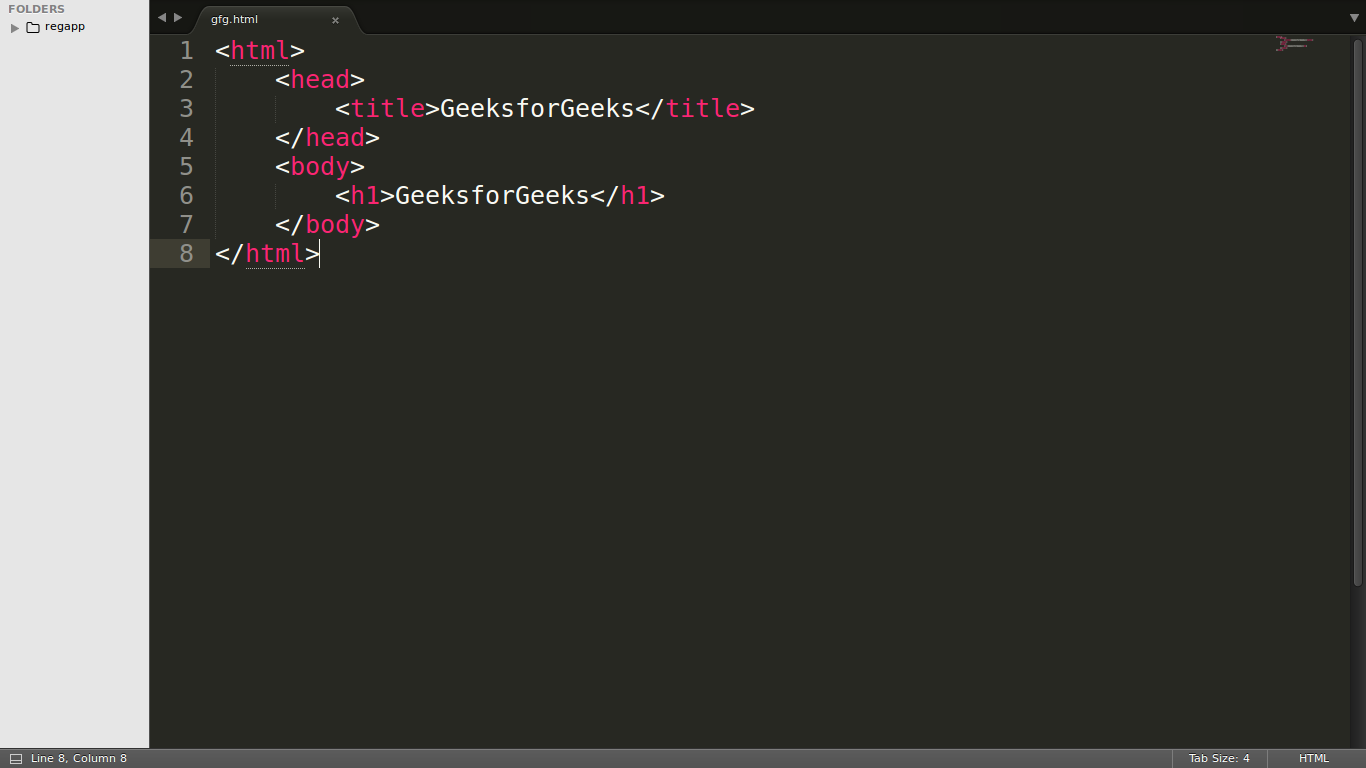
Choosing a Text Editor
The first step is to select a suitable text editor. There are numerous options available, ranging from basic to advanced. Here are some popular choices:
- Basic Text Editors:
- Notepad (Windows)
- TextEdit (macOS)
- Gedit (Linux)
These are simple text editors that allow you to create and edit plain text files, including HTML. However, they lack advanced features like syntax highlighting and code completion.
- Code Editors:
- Visual Studio Code
- Sublime Text
- Atom
- Brackets
These editors are designed specifically for coding and offer features like syntax highlighting, code completion, debugging, and extensions. They are highly recommended for HTML development.
- Integrated Development Environments (IDEs):
- Visual Studio
- IntelliJ IDEA
- Eclipse
IDEs are comprehensive tools that provide a full suite of features for software development, including code editing, debugging, version control, and more. While they are powerful, they might be overkill for simple HTML projects.
Setting Up Your Editor
Once you've chosen an editor, you'll need to configure it for HTML development. Here are some general steps:
- Install the editor: Download and install the chosen editor on your computer.
- Create a new file: Open the editor and create a new file.
- Save the file: Save the file with an
.htmlextension (e.g.,index.html). - Enable syntax highlighting: Most code editors automatically enable syntax highlighting for HTML, but you may need to configure it in some cases.
- Use a code formatter: Some editors offer built-in code formatters or have extensions for this purpose. Formatting your code consistently improves readability.
Additional Tips
- Create a project folder: Organize your HTML files and related assets (images, CSS, JavaScript) in a dedicated project folder.
- Use a live server extension: Many editors support live server extensions, which allow you to see changes in your HTML file reflected immediately in a web browser without manually refreshing.
- Learn keyboard shortcuts: Familiarize yourself with the editor's keyboard shortcuts to increase your efficiency.
Example of a basic HTML structure:
<!DOCTYPE html>
<html>
<head>
    <title>My First HTML Page</title>
</head>
<body>
    <h1>Hello, world!</h1>
    <p>This is a paragraph.</p>
</body>
</html>
By following these steps and choosing the right editor, you'll be well-equipped to start creating your HTML projects.

 English
 Arabic
 French
 Spanish
 Deutsch
 Turkish
 Dutch
Dutch
 Italiano
 Russian
 Romaian
 Portuguese (Brazil)
 Greek
Greek