


VLOOKUP FUNCTIONS
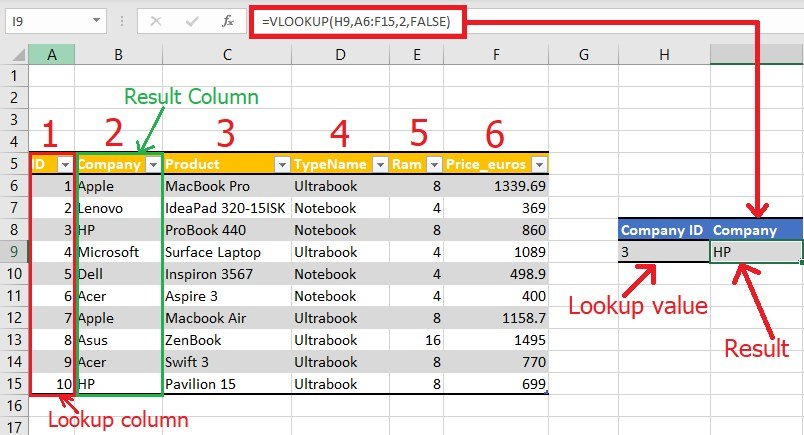
VLOOKUP is a powerful function in Excel that allows you to search for a value in a table and return a corresponding value from a different column. It's like looking up a phone number in a directory based on someone's name.
Syntax:
=VLOOKUP(lookup_value, table_array, col_index_num, [range_lookup])
Parameters:
- lookup_value: The value you want to find.
- table_array: The range of cells where your data is located.
- col_index_num: The number of the column that contains the value you want to return.
- range_lookup: (Optional) TRUE for approximate match (finds the next closest value if no exact match is found), FALSE for exact match only.
How it works:
- VLOOKUP searches for the
lookup_valuein the first column of thetable_array. - If an exact match is found, it returns the value in the corresponding row of the
col_index_numcolumn. - If no exact match is found and
range_lookupis TRUE, it returns the value in the corresponding row of thecol_index_numcolumn for the first row that is greater than or equal to thelookup_value. - If no exact match is found and
range_lookupis FALSE, it returns #N/A.
Examples:
Example 1: Exact match
Suppose you have a table of employee data, with the first column containing employee IDs and the second column containing their salaries. You want to find the salary of employee ID 1234.
You can use the following formula:
=VLOOKUP(1234, A2:B10, 2, FALSE)
This will return the salary of employee ID 1234, which is in cell B3.
Example 2: Approximate match
Suppose you have a table of sales data, with the first column containing product IDs and the second column containing product prices. You want to find the price of product ID 12345, but you only know that the product ID is approximately 12345.
You can use the following formula:
=VLOOKUP(12345, A2:B10, 2, TRUE)
This will return the price of product ID 12346, which is the closest product ID to 12345 that is in the table.
Additional tips:
- The
table_arraymust be sorted in ascending order by the first column if you want to use approximate matching. - If you want to return a value from a column that is to the left of the lookup column, you can use the
HLOOKUPfunction instead. - VLOOKUP can be used to perform many different tasks, such as looking up customer information, pricing data, or employee records.


 English
 Arabic
 French
 Portuguese
 Deutsch
 Turkish
 Dutch
Dutch
 Italiano
 Russian
 Romaian
 Portuguese (Brazil)
 Greek
Greek