


Creating a login form using HTML and CSS

0
11K

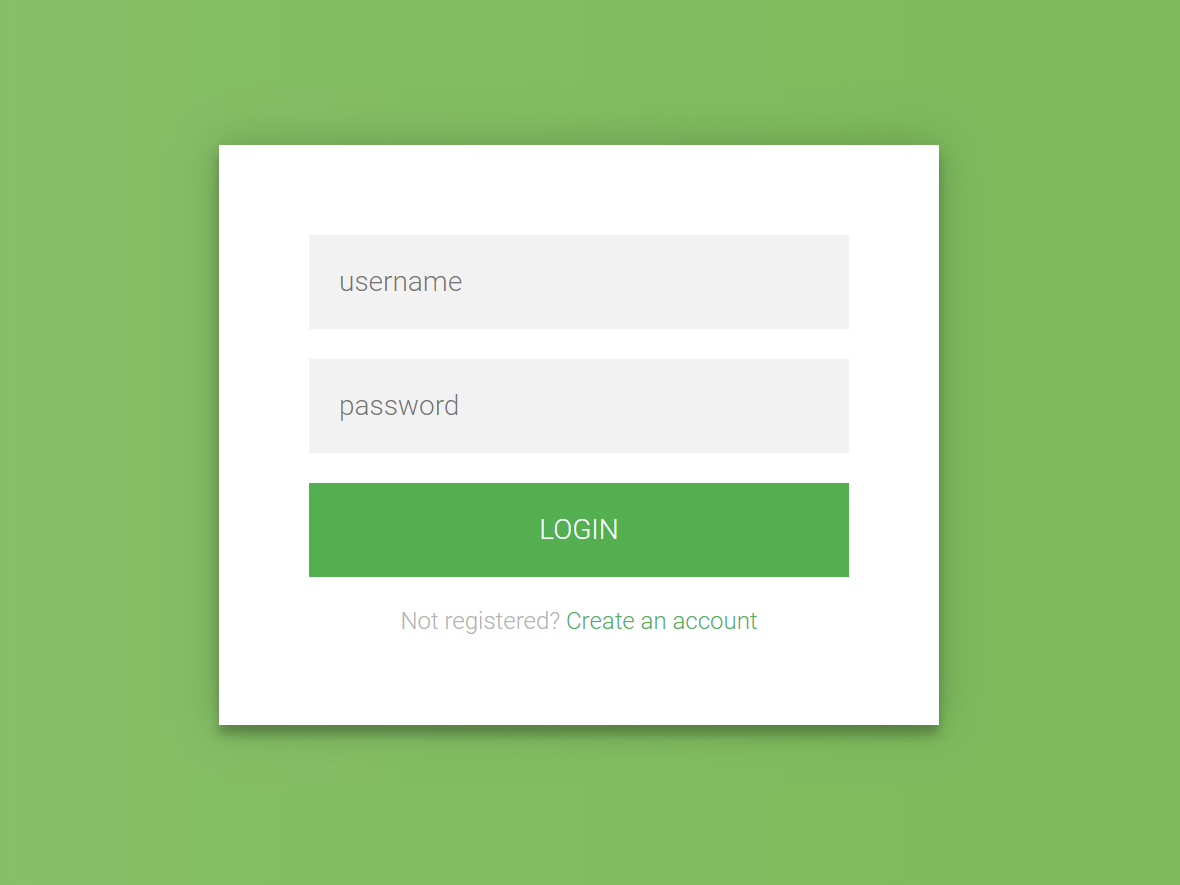
Creating a login form using HTML and CSS is a fundamental skill in web development. Here's a step-by-step guide to building a simple and responsive login form:
1. HTML Structure

Begin by setting up the basic HTML structure for the login form. This includes a container for the form elements such as the username and password fields, and a submit button.

html
<!DOCTYPE html> <html lang="en"> <head> <meta charset="UTF-8"> <meta name="viewport" content="width=device-width, initial-scale=1.0"> <title>Login Form</title> <link rel="stylesheet" href="styles.css"> </head> <body> <div class="login-container"> <h2>Login</h2> <form action="/login" method="post"> <label for="username">Username</label> <input type="text" id="username" name="username" required> <label for="password">Password</label> <input type="password" id="password" name="password" required> <button type="submit">Login</button> </form> </div> </body> </html>

Explanation:

  • The <form> element wraps the input fields and the submit button.
  • Each <label> is associated with an <input> field, enhancing accessibility.
  • The required attribute ensures that users cannot submit the form without filling in these fields.

2. CSS Styling

Next, style the form to make it visually appealing and responsive.

css
 
/* styles.css */ body { display: flex; justify-content: center; align-items: center; height: 100vh; margin: 0; font-family: Arial, sans-serif; background-color: #f2f2f2; } .login-container { width: 100%; max-width: 400px; padding: 20px; background-color: #fff; box-shadow: 0 0 10px rgba(0, 0, 0, 0.1); border-radius: 8px; } h2 { text-align: center; margin-bottom: 20px; } label { display: block; margin-bottom: 5px; font-weight: bold; } input[type="text"], input[type="password"] { width: 100%; padding: 10px; margin-bottom: 15px; border: 1px solid #ccc; border-radius: 4px; box-sizing: border-box; } button { width: 100%; padding: 10px; background-color: #4CAF50; color: white; border: none; border-radius: 4px; cursor: pointer; font-size: 16px; } button:hover { background-color: #45a049; }

Explanation:

  • The body is styled to center the login form both vertically and horizontally.
  • The .login-container class styles the form container with a fixed width, padding, background color, shadow, and rounded corners.
  • Input fields and the button are styled for better user experience, with padding, borders, and hover effects.

3. Responsive Design

To ensure the form is responsive on various screen sizes, the .login-container is set to a maximum width and uses percentage-based widths for its elements. This allows the form to resize appropriately on different devices.

Love
1
Search
Categories
Read More
Technology
Using the SUM Function in Excel: A Step-by-Step Guide
The SUM function in Excel is a powerful tool used to calculate the total of a range of numbers....
By Microsoft Excel 2024-09-03 03:17:00 1 12K
Education
Steps to Write a Best CV
A well-crafted CV is essential for making a positive impression on potential employers. Here are...
By Mpatswe Francis 2024-08-31 18:31:33 2 10K
Computer Programming
Element-specific attributes (alt for images, href for links)
While global attributes can be applied to any HTML element, some attributes are specific to...
By HTML PROGRAMMING LANGUAGE 2024-08-15 01:47:04 0 8K
Technology
Overview of navigation and basic spreadsheet terminology
Navigation in Spreadsheets: Opening a Spreadsheet: To open a spreadsheet, click on the...
By Microsoft Excel 2024-07-26 04:39:53 0 9K
Computer Programming
Doctype Declaration in HTML
What is a Doctype Declaration? A doctype declaration is an instruction to the web browser about...
By HTML PROGRAMMING LANGUAGE 2024-08-13 03:28:57 0 9K
Talksphare https://talksphare.com